2–3
Little Explorers
Free Play · ages 2 and 3Every key brings a letter, a sound and a word. B for Bubble! Mash lots of keys at once and a key party starts.
 Little Keys
 turns your Mac or iPad keyboard into a safe playground for ages 2 to 6. Press B and a bubble pops. Press D and a dinosaur stomps by. Your apps and files stay locked away.
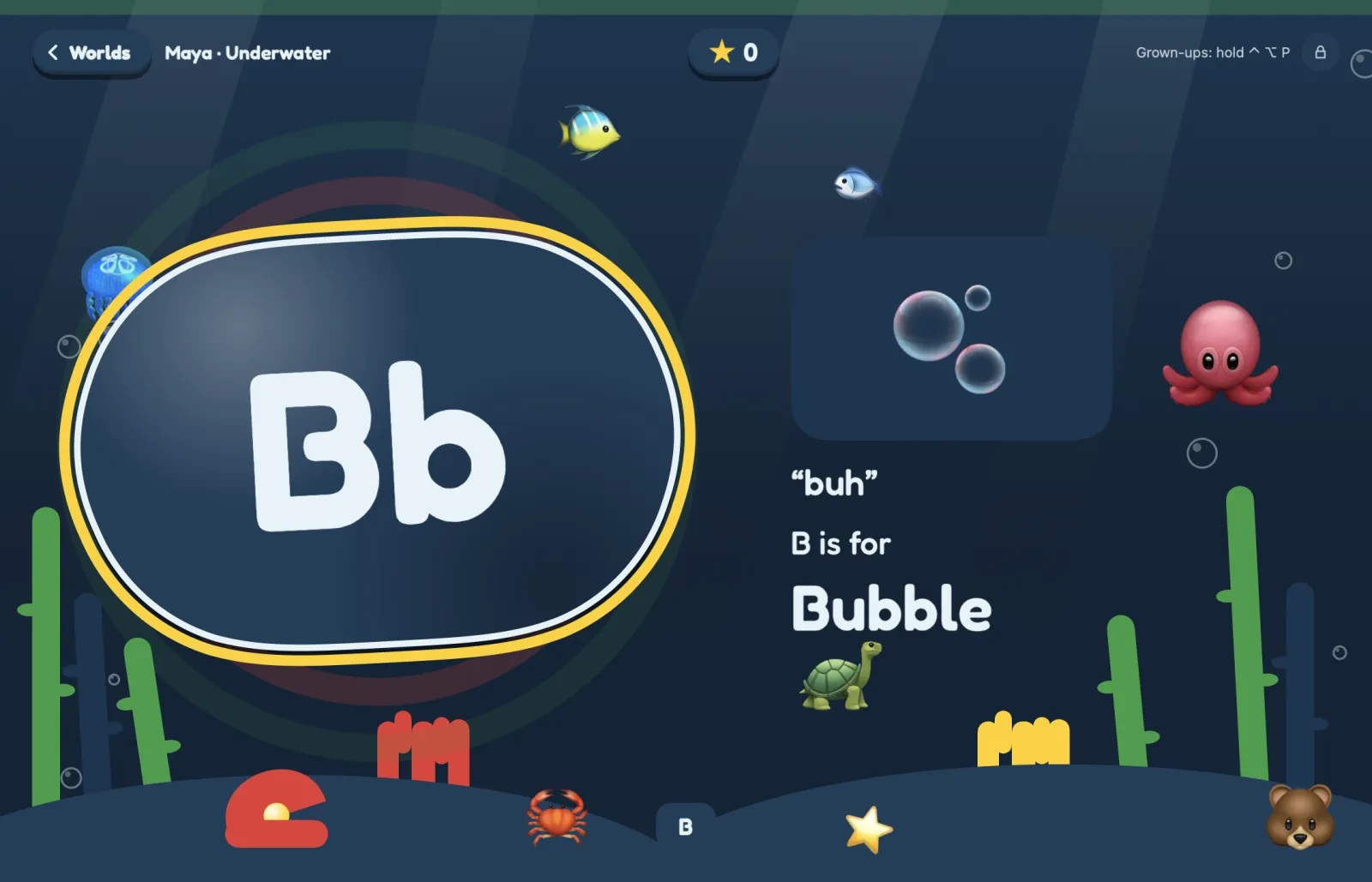
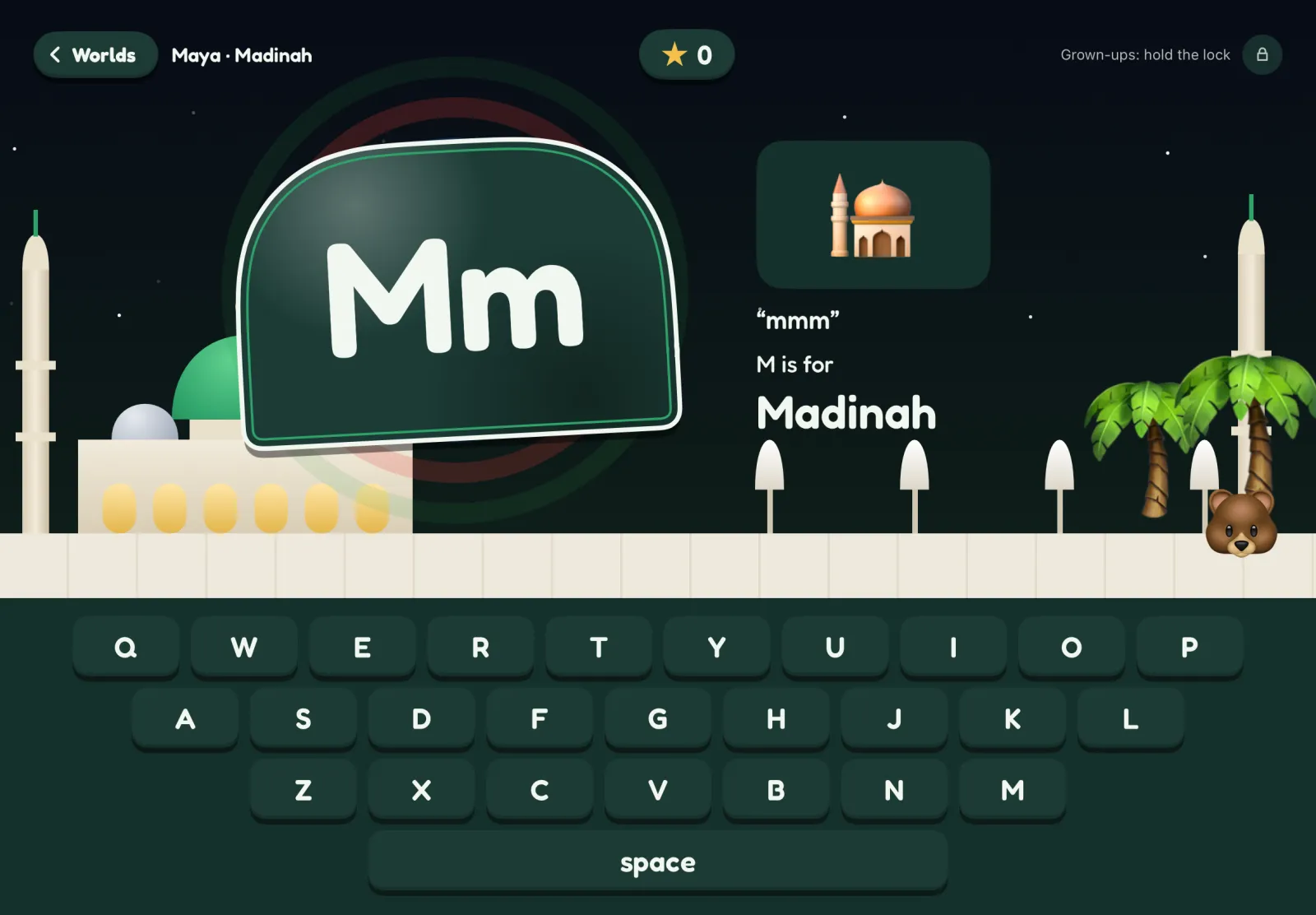
Each key shows its letter, says its sound and brings in a word with a picture. B is for Bubble, in the Underwater world.
Keyboard Shield turns Little Keys invisible and keeps it on top of every other app. Your video plays on. Every key and click from little hands goes nowhere.
Open Parent Settings, go to Kid Lock and press Start under Keyboard Shield.
A countdown shows at the top of the screen. It's 10 seconds by default, and you can set it from 0 to 60.
Keys and clicks do nothing. To end it, press ⌘ Q, which quits Little Keys. Volume and brightness keys still work.
Start your video before the countdown ends. You can't click on it once the shield is on. The power button can't be blocked, so stay nearby.
Set up a profile for each child, up to four. Little Keys picks the right play mode for their age, and you can change it any time.
Every key brings a letter, a sound and a word. B for Bubble! Mash lots of keys at once and a key party starts.
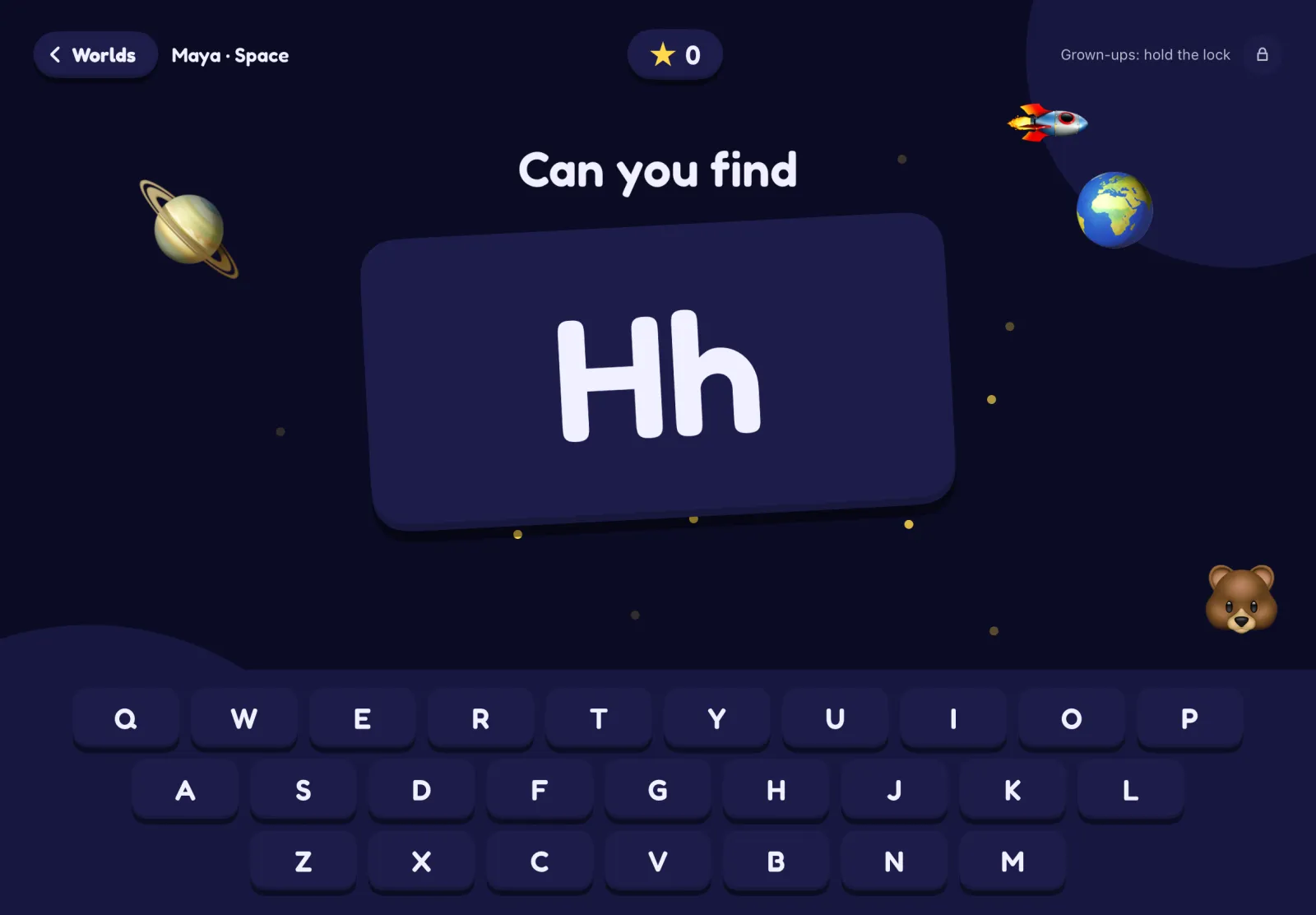
Find the letters and collect stars. Letters your child misses come back more often, and hints appear when they need one.
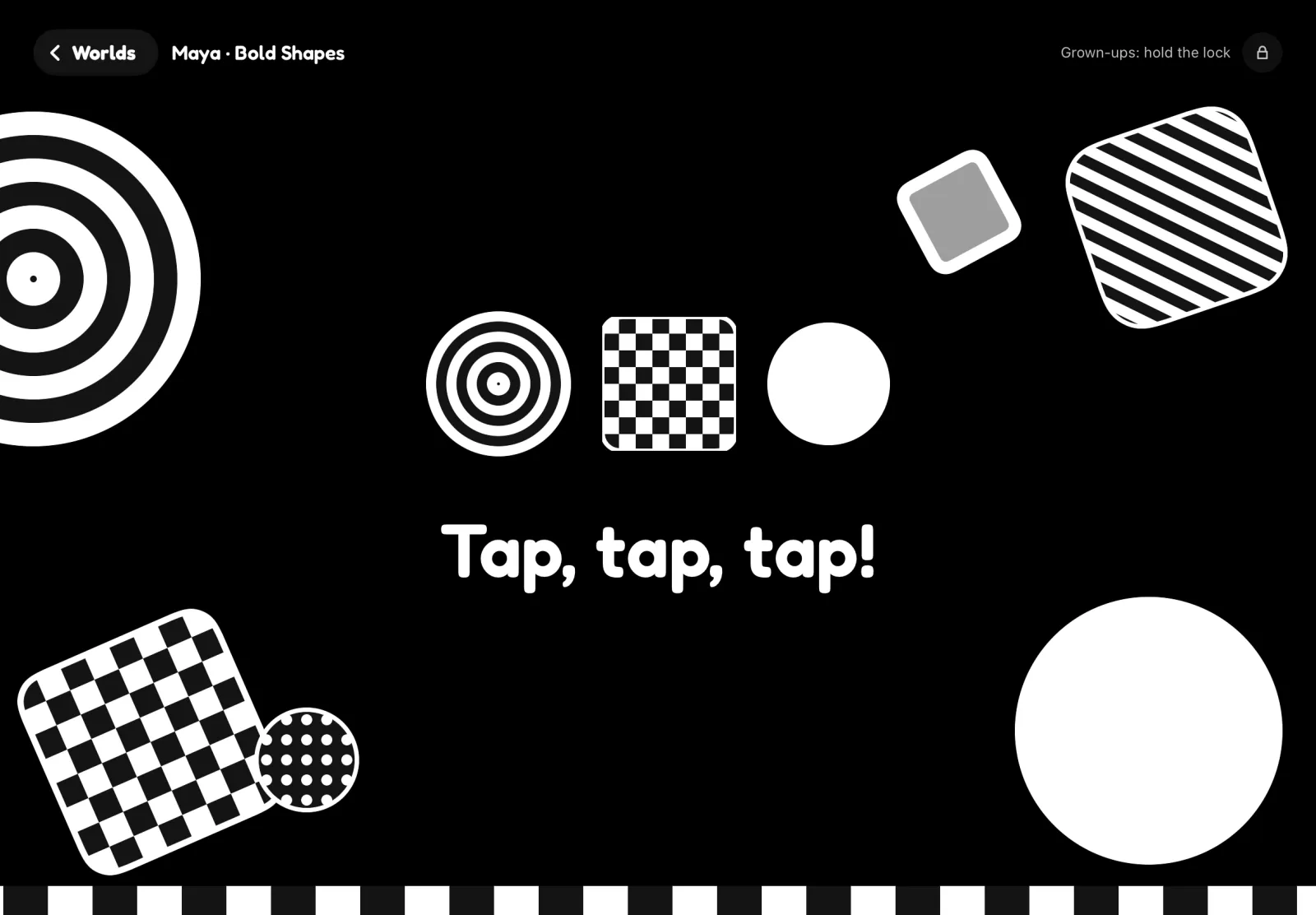
Big shapes and simple sounds, in high-contrast black and white or soft colors. Any tap or key is safe, so nothing breaks.
Free Play has no rules and no way to fail, so mashing the keys is part of the fun. Stars earn stickers, buddies and hats, with no real money involved.
Taps or presses anything to make big shapes and simple sounds appear.
Presses any key to see its letter, hear its sound and meet a word. No rules and no way to fail.
Finds a letter, number or a word's first letter. No timer, and hints light up the keyboard.
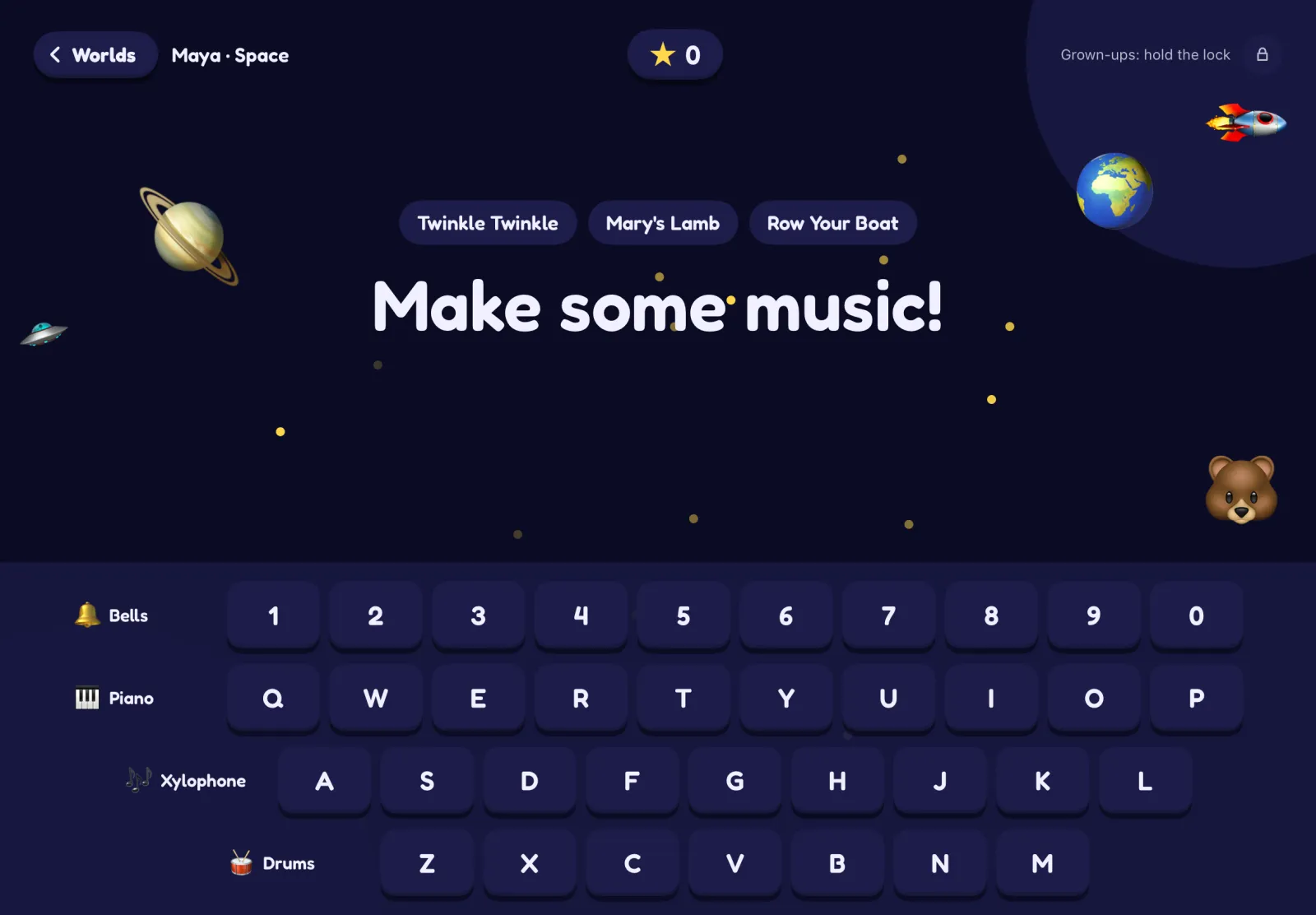
Plays bells, piano, xylophone and drums, or follows Twinkle Twinkle, Mary's Lamb or Row Your Boat.
Types the answers to questions about themselves, their family and home, one letter at a time. A parent fills in the answers.
Catches falling letters, numbers, sight words, themed words or simple sums by pressing the right key.
| Mode | Ages | What your child does |
|---|---|---|
| Tap & See | Under 2 | Taps or presses anything to make big shapes and simple sounds appear. |
| Free Play | 2–3 | Presses any key to see its letter, hear its sound and meet a word. No rules and no way to fail. |
| Find the Key | 4–6 | Finds a letter, number or a word's first letter. No timer, and hints light up the keyboard. |
| Music Keys | All ages | Plays bells, piano, xylophone and drums, or follows Twinkle Twinkle, Mary's Lamb or Row Your Boat. |
| About Me | 4–6 | Answers questions about themselves, their family and home, such as a parent's name, their address or a phone number, by typing the answer one letter at a time. A parent fills in the answers and turns this mode on. |
| Key Drop | 5–6 | Catches falling letters, numbers, sight words, themed words or simple sums by pressing the right key. |
Each world has its own scene, sounds and A-to-Z words. Children see the worlds made for their age, and you choose which ones to hide.
Keyboard smashes stay inside Little Keys. Getting out takes a grown-up.
On Mac, Kid Lock blocks system shortcuts. To leave, hold ⌃⌥P for 1 second, then enter your PIN if you set one.
Watching a video on your Mac? Little Keys turns invisible and stays on top, so keys and clicks do nothing. It starts after a 10-second countdown that you can change.
Make M say "M for Mama!" Type a word for each key and pick one of 8 sounds. Works in Free Play.
Pick 5 to 120 minutes. Little Keys locks, then unlocks by itself when time is up and opens Parent Settings. Unlock early with the hold and your PIN.
Set 10 to 60 minutes. When time's up, a rest screen stays on until a grown-up unlocks it.
A dyslexia-friendly font option, large text, calm mode with softer motion, and high-contrast letters.
Up to four children, each with their own age, worlds and progress.
No ads, no accounts, no tracking. Progress is kept on your device.
| Mac | iPad | |
|---|---|---|
| What locks it | Kid Lock, built into Little Keys | Apple's Guided Access, which you turn on in Settings |
| Blocked | ⌘Tab, ⌘Q, ⌘W, ⌘H, ⌘M, Mission Control, Dock, menu bar | Leaving the app, while Guided Access is on |
| Can't be blocked | Power button, volume and brightness keys | Depends on the Guided Access options you choose |
| Extra displays | Covered too, on by default | Not applicable |
| While you watch a video | Keyboard Shield keeps keys and clicks from reaching other apps. It starts after a countdown of 0 to 60 seconds, and ⌘Q ends it by quitting Little Keys | Not available |
| How to leave | Hold ⌃ ⌥ P for 1 second, then enter your PIN if you set one | Triple-click the top button for Guided Access. In the app, hold the lock icon for 1 second, then enter your PIN if you set one |
Step-by-step help is on the support page. For the bigger picture, read our guide to safe keyboard play for toddlers.
Little Keys is a keyboard play app for Mac and iPad, made for children aged 2 to 6. Every key press makes something happen: a letter, a sound, a word or a burst of color. It has six play modes and 30 themed worlds, with no ads, accounts or tracking.
Ages 2 to 6. Children aged 2 and 3 get Free Play, and children aged 4 to 6 get Find the Key. Music Keys works at every age. About Me, which a parent turns on, suits ages 4 to 6, and Key Drop suits ages 5 and 6. If a child under 2 grabs the keyboard, Baby-safe mode keeps it harmless.
Kid Lock is designed to stop that. It fills the screen, hides the Dock and menu bar, and blocks shortcuts such as ⌘Tab and ⌘Q. Force Quit (⌥⌘Esc) stays available for grown-ups. The power button and the volume and brightness keys can't be blocked, so stay close by while your child plays.
Use Apple's Guided Access, which keeps the iPad on one app. Turn it on in Settings, under Accessibility, then triple-click the top button while Little Keys is open. iPadOS doesn't let an app start this by itself, so Little Keys shows you the steps and whether it's on.
On a Mac, hold Control, Option and P for 1 second. On an iPad, touch and hold the lock icon for 1 second. If you set a 4-digit PIN, enter it. Letting go early cancels the hold.
Yes, with Keyboard Shield. Start it in Parent Settings, under Kid Lock, then switch to your video. After a countdown of 10 seconds, which you can change from 0 to 60, Little Keys turns invisible and stays on top, so keys and clicks do nothing while the video plays. Press ⌘Q to end it, which quits Little Keys. Volume and brightness keys still work.
Yes, with Timer Lock. In Parent Settings, under Kid Lock, choose a length from 5 to 120 minutes and press Start. Little Keys locks for your child. When the time is up it unlocks by itself and opens Parent Settings, with no hold or PIN. To unlock early, use the 1-second hold and your PIN if you set one. On iPad, Timer Lock ends the Little Keys lock only. Guided Access stays under your control in Settings.
Yes, on iPad. Tap & See and Bubble Pop respond to taps on the screen, Music Keys has its own on-screen keys, and the other modes show a keyboard on the screen. A Magic Keyboard or Smart Keyboard makes it more fun, but it isn't required. On a Mac, your child uses the Mac's own keyboard.
No. Little Keys runs on iPad with iPadOS 17 or later, and on Mac with macOS 14 or later. It needs a screen big enough for a whole keyboard, so there is no iPhone version.
Little Keys is a one-time purchase on the App Store, with every world and game included. There is no free trial, subscription or in-app purchase. The price will be shown on the App Store at launch.
No. Little Keys has no accounts, ads, analytics or tracking. A child's name, age, About Me answers, progress and settings are stored on your device and aren't sent to us. The app doesn't go online. Device backups you turn on may include this data.
Little Keys is made for ages 2 to 6. The World Health Organization doesn't recommend sedentary screen time for children under 2, so we don't make lessons for babies. Baby-safe mode is there for when a baby grabs the keyboard: big shapes and simple sounds, and nothing breaks. Your pediatrician can advise on your own child.
It teaches the steps before typing: finding letters, matching sounds to letters, and spelling a name or short words. It isn't a touch-typing course, and it has no finger-placement lessons. It's made for children who are still learning what the keys are.
Yes, as an optional setting with no extra cost. Islamic mode adds worlds such as Salaam, Madinah, Makkah, Ramadan Nights and Eid Day, plus Islamic words and gentle cheers. With it off, your child sees only the general worlds.
English only for now. The letters, words and spoken prompts are all in English. The Islamic worlds use English-script words too. The voice is Apple's speech voice, which runs on your device.
Coming soon to Mac and iPad. One purchase is planned to cover both devices for the whole family.